[Logix] Bài 11: Mô phỏng chương trình RSLogix 5000 với RSEmulate 5000 [Logix] Lesson 11: Simulating RSLogix 5000 with RSEmulate 5000
Chia sẻ từ kinh nghiệm thực tế của một kỹ sư tự động hóa hơn 15 năm trong nghề. Insights from a senior automation engineer with 15+ years of hands-on Rockwell experience.
Mô phỏng là công cụ không thể thiếu với bất kỳ ai làm lập trình PLC. Nhờ mô phỏng, chúng ta kiểm tra logic, phát hiện lỗi và tối ưu chương trình trước khi triển khai lên hệ thống thực tế – tiết kiệm rất nhiều thời gian, chi phí và tránh rủi ro khi vận hành.
1. Lựa chọn phần mềm mô phỏng
Để mô phỏng cho RSLogix 5000, bạn có hai lựa chọn: RSEmulate 5000 hoặc SoftLogix. Thông thường, nếu chỉ cần mô phỏng, RSEmulate 5000 là lựa chọn tối ưu vì thao tác đơn giản, không cần cấu hình lại IO khi thay đổi CPU.
- Phải dùng đúng phiên bản RSEmulate 5000 tương ứng với RSLogix 5000 (ví dụ: version 20).
- RSEmulate 5000 hoạt động như một CPU thật trên chassis ảo.
2. Tạo CPU giả lập trên RSEmulate 5000
Khởi động phần mềm, bạn sẽ thấy giao diện với các slot trống trên chassis:
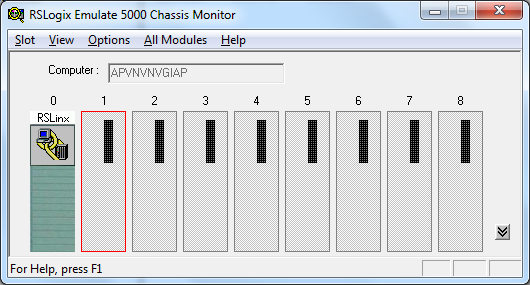
- Click phải vào slot trống (nên chọn từ slot 2 trở đi, slot 1 dành cho RSLinx Enterprise).
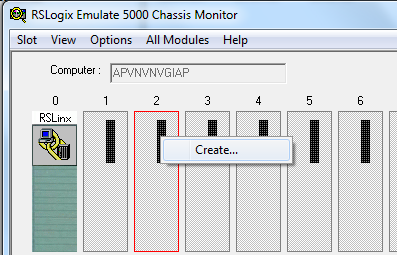
- Chọn loại CPU phù hợp, nhấn OK.
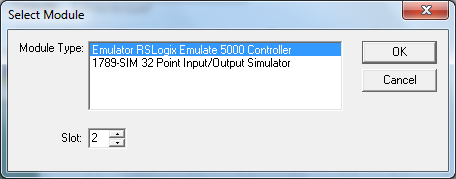
- Next liên tục để xác nhận các thông số mặc định.
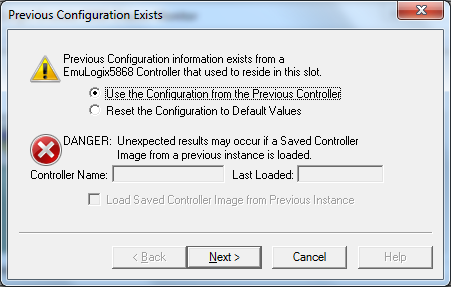
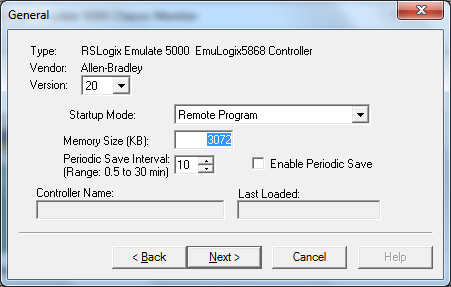
- Finish để hoàn tất.
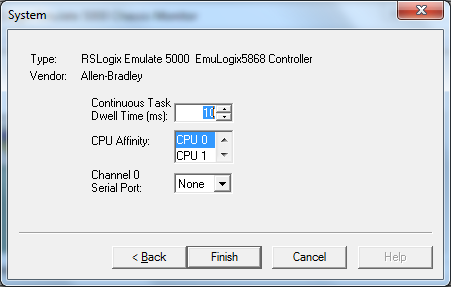
- CPU sẽ xuất hiện trên chassis ảo:
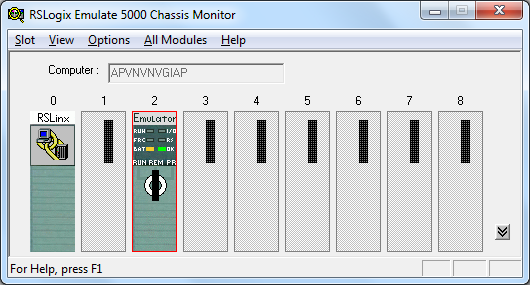
Bạn có thể tạo nhiều CPU trên chassis ảo, tương tự như phần cứng thật.
3. Cấu hình RSLinx Classic để nhận CPU mô phỏng
Để RSLogix 5000 giao tiếp với CPU mô phỏng, cần cấu hình driver trong RSLinx Classic:
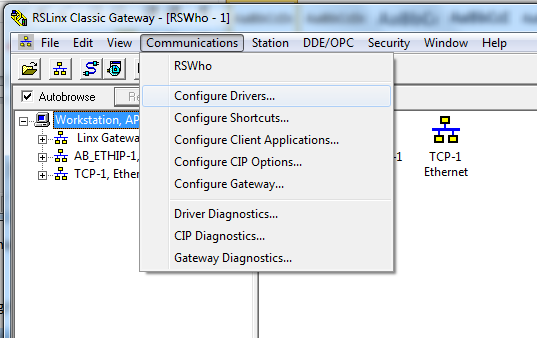
- Mở RSLinx Classic, chọn Configure Drivers.
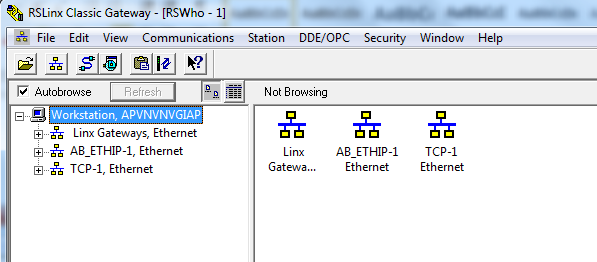
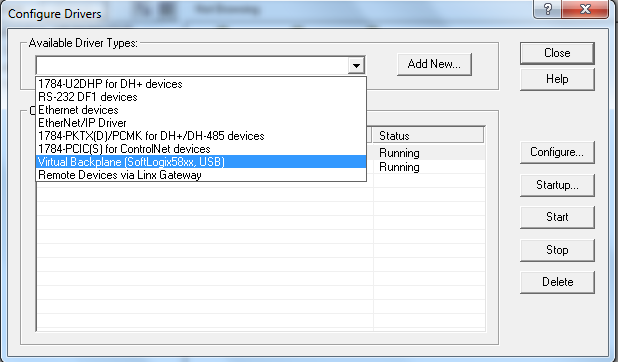
- Thêm driver mới, chọn Virtual Backplane và nhấn Add New.
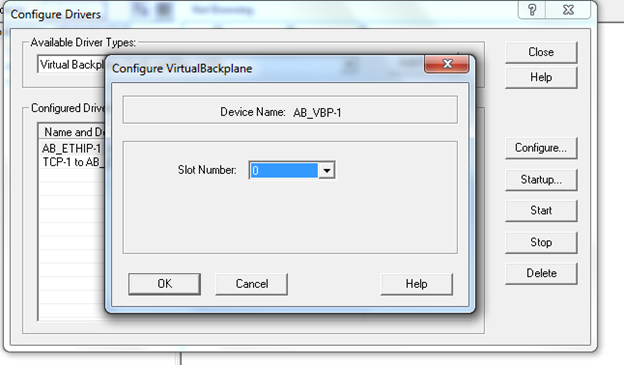
- Nhấn OK để xác nhận.
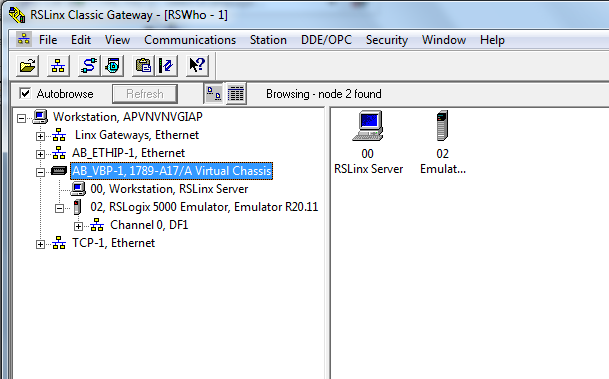
- Sau khi cấu hình xong, CPU mô phỏng sẽ xuất hiện trong RSLinx:
4. Download/Upload và chỉnh sửa Online với CPU mô phỏng
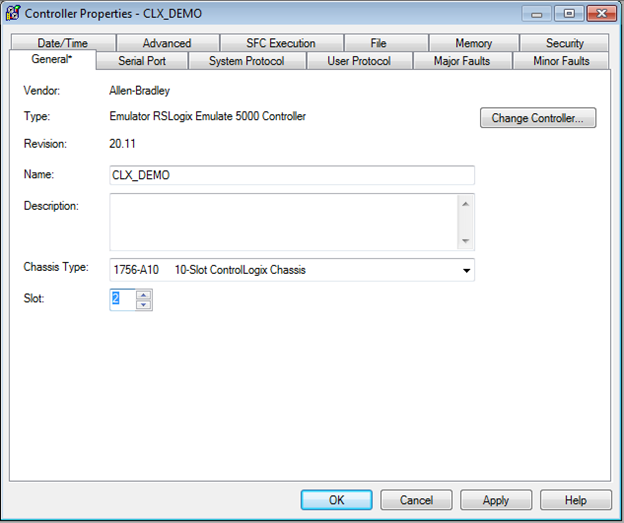
- Trong RSLogix 5000, thay CPU thật bằng CPU mô phỏng:
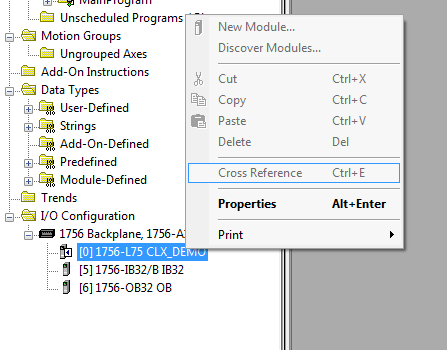
- Click phải vào CPU, chọn Properties.
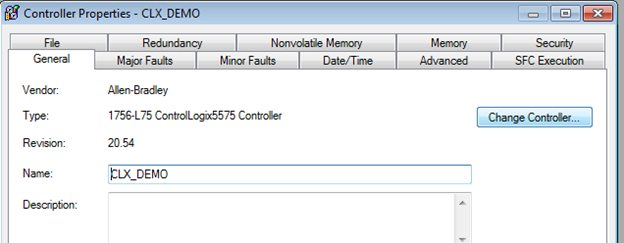
- Chọn Change Controller.
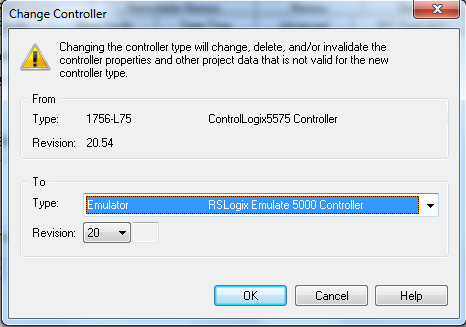
- Chọn Emulator, đúng revision, nhấn OK.
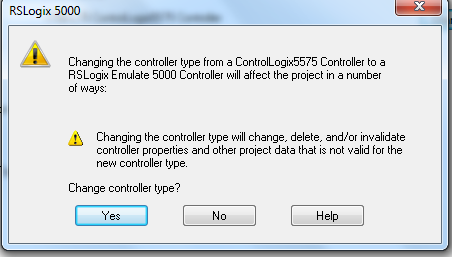
- Xác nhận, chọn đúng slot đã cấu hình (ví dụ: slot 2).
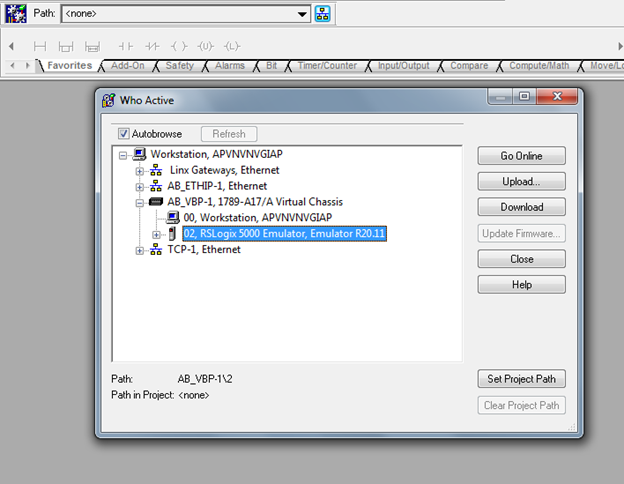
- Bây giờ bạn có thể Download chương trình:
- Và Online để kiểm tra, chỉnh sửa trực tiếp:
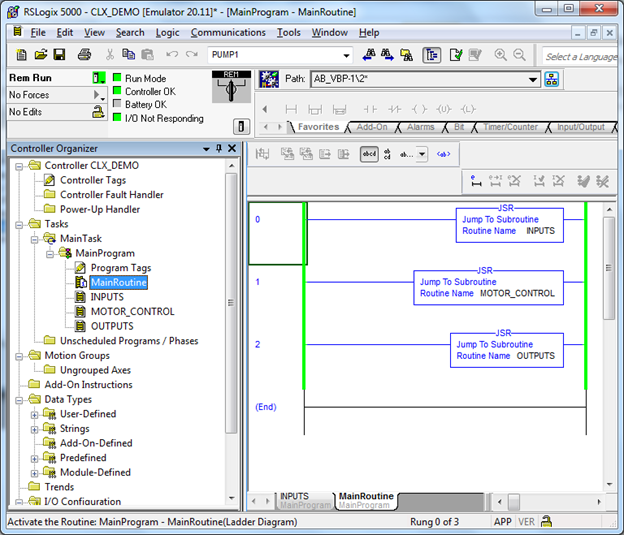
Các thao tác upload, chỉnh sửa online hoàn toàn tương tự như trên CPU thật.
5. Ghi chú thực tế
- RSEmulate 5000 là phần mềm thương mại, cần mua license.
- Khi lập trình, nên chủ động viết các đoạn code kiểm thử mô phỏng để kiểm tra logic, giảm thiểu lỗi khi triển khai thực tế.
Simulation is an essential tool for any PLC programmer. It allows you to verify logic, catch errors, and optimize your program before deploying to real hardware—saving time, cost, and reducing operational risks.
1. Choosing Simulation Software
For RSLogix 5000, you have two main options: RSEmulate 5000 or SoftLogix. For most simulation needs, RSEmulate 5000 is preferred due to its simplicity and no need to reconfigure IO when changing CPUs.
- Always use the RSEmulate 5000 version that matches your RSLogix 5000 (e.g., version 20).
- RSEmulate 5000 acts as a real CPU on a virtual chassis.
2. Creating a Virtual CPU in RSEmulate 5000
Start the software and you’ll see empty slots on the chassis interface:
- Right-click an empty slot (choose slot 2 or higher; slot 1 is reserved for RSLinx Enterprise).
- Select the appropriate CPU type and click OK.
- Click Next to accept default parameters.
- Click Finish to complete.
- The CPU will appear on the virtual chassis:
You can create multiple CPUs on the virtual chassis, just like real hardware.
3. Configuring RSLinx Classic to Detect the Simulated CPU
To allow RSLogix 5000 to communicate with the simulated CPU, configure a driver in RSLinx Classic:
- Open RSLinx Classic and select Configure Drivers.
- Add a new driver, select Virtual Backplane, and click Add New.
- Click OK to confirm.
- After configuration, the simulated CPU will appear in RSLinx:
4. Download/Upload and Online Editing with the Simulated CPU
- In RSLogix 5000, replace the real CPU with the simulated one:
- Right-click the CPU and select Properties.
- Select Change Controller.
- Select Emulator with the correct revision, then click OK.
- Confirm and select the correct slot (e.g., slot 2).
- You can now Download the program:
- And go Online to test and edit live:
All upload and online editing operations are identical to working with real hardware.
5. Practical Notes
- RSEmulate 5000 is commercial software and requires a license.
- When programming, always write simulation test code to verify logic and minimize errors before deployment.