System Status: Online
Trạng thái hệ thống: Trực tuyến
Est. 2012 • Updated 2025
[Logix] Bài 6: Upgrade Firmware cho Controllogix/Compactlogix [Logix] Lesson 6: Upgrade Firmware for Controllogix/Compactlogix
Hướng dẫn nâng cấp firmware cho Controllogix/Compactlogix, chi tiết từng bước, hình ảnh minh họa, lưu ý thực tế. How to upgrade firmware for Controllogix/Compactlogix, step-by-step with images and practical notes.
Khi Firmware và Revision của phần mềm Rslogix 5000 khác nhau thì cần phải nâng cấp Firmware của Controller hoặc cài phiên bản Rslogix 5000 tương ứng. Việc nâng cấp Firmware của Controller cũng phải được thực hiện đối với Controller mới vì khi mua về chỉ là Firmware xuất xưởng (thường là 1.008).
Thực hiện Upgrade Firmware theo các bước sau:
- Khi cài đặt Rslogix 5000, chương trình tự động cài thêm công cụ FLASH Programming Tool, ngay trong Program Files. Đó chính là công cụ sử dụng để Upgrade/Dowgrade Firmware cho các thiết bị điều khiển của AB.
- Chuẩn bị khi Upgrade/Downgrade:
- Backup chương trình vì khi Upgrade/Downgrade chương trình trong CPU sẽ bị xóa
- Kết nối máy tính đến Controller cần Upgrade.
- Chuyển khóa trên CPU sang chế độ PROGRAM
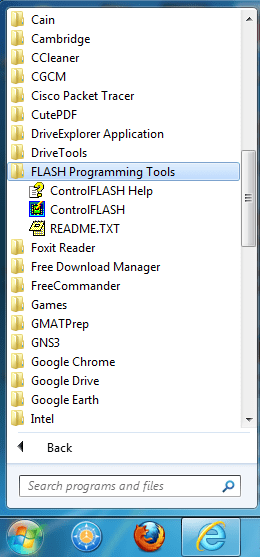
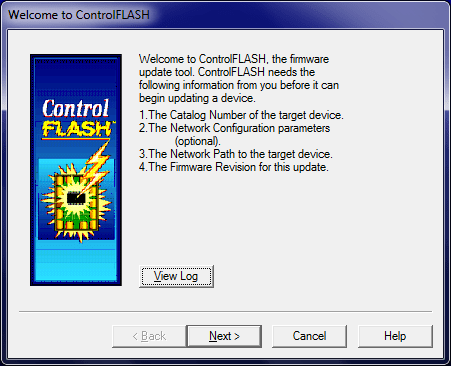
- Chạy Flash Programming Tool, NEXT
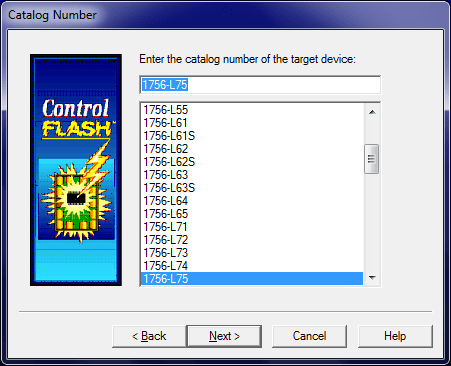
- Chọn Controller hay Module cần Upgrade. Ở đây chọn CPU Controllogix L75
- NEXT
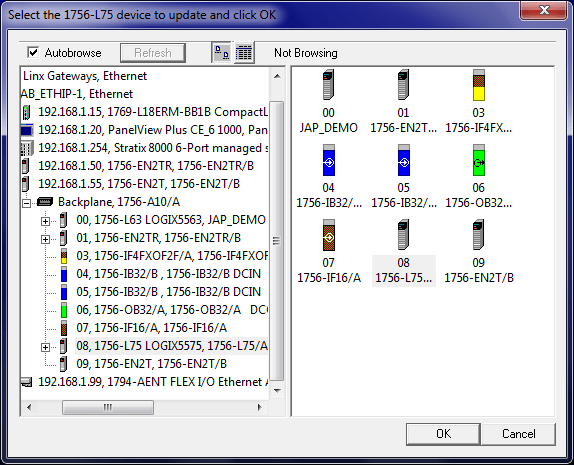
- OK
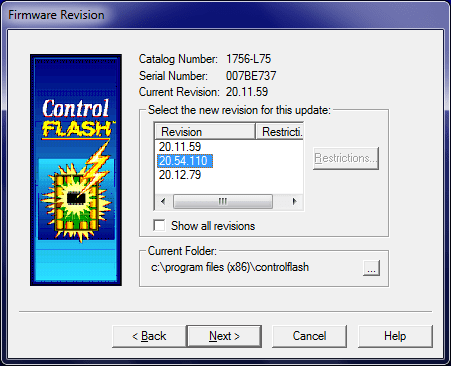
- Chọn phiên bản cần Upgrade hoặc Downgrade
- NEXT
- Finish

- Xác nhận
- YES

- Quá trình Upgrade diễn ra

- Thông báo đã Upgrade xong xuất hiện. Nếu bị lỗi sẽ có thông báo lỗi (màu đỏ)

Ghi chú:
- Việc Upgrade/Downgrade Firmware là công việc bình thường, nhưng do ít khi phải thực hiện nên nhiều người cảm thấy lo lắng không cần thiết.
- Cần thiết phải duy trì nguồn điện cho CPU và kết nối giữa CPU và máy tính liên tục trong thời gian Upgrade. Nếu bị ngắt giữa chừng thì CPU sẽ trở về phiên bản Firmware xuất xưởng và phải thực hiện Upgrade lại. Tuy nhiên trường hợp này cũng có thể gây ra lỗi và hỏng CPU.
- Nên thực hiện qua Ethernet hoặc cổng USB (đối với các CPU đời mới), không nên thực hiện qua cổng RS-232 vì rất chậm và hay mất truyền thông.
- Thời gian Upgrade trung bình từ 3-5 phút (qua Ethernet)
Giap Van Vy – 2012
If the Firmware and Revision of Rslogix 5000 do not match, you must upgrade the Controller's Firmware or install the matching Rslogix 5000 version. New Controllers also require Firmware upgrade as they ship with factory default (usually 1.008).
Upgrade Firmware steps:
- When installing Rslogix 5000, the FLASH Programming Tool is also installed in Program Files. This is used to Upgrade/Downgrade Firmware for AB controllers.
- Preparation for Upgrade/Downgrade:
- Backup your program, as upgrading/downgrading will erase the CPU program
- Connect PC to the target Controller
- Switch the CPU key to PROGRAM mode
- Run Flash Programming Tool, NEXT
- Select the Controller or Module to upgrade. Here, select Controllogix L75 CPU
- NEXT
- OK
- Select the version to Upgrade or Downgrade
- NEXT
- Finish
- Confirm
- YES
- Upgrade in progress
- Upgrade complete notification appears. If error, a red error message will show
Notes:
- Upgrading/Downgrading Firmware is normal, but many feel anxious as it's rarely done.
- Keep CPU powered and PC-CPU connection stable during upgrade. If interrupted, CPU reverts to factory firmware and must be upgraded again. This can sometimes cause errors or damage.
- Use Ethernet or USB (for new CPUs), avoid RS-232 as it's slow and unreliable.
- Upgrade time: 3-5 minutes (via Ethernet)
Giap Van Vy – 2012